Social Media Connection Procedure
Objective
This SOP outlines the steps to connect your social media accounts to enhance your digital presence effectively.
Key Steps
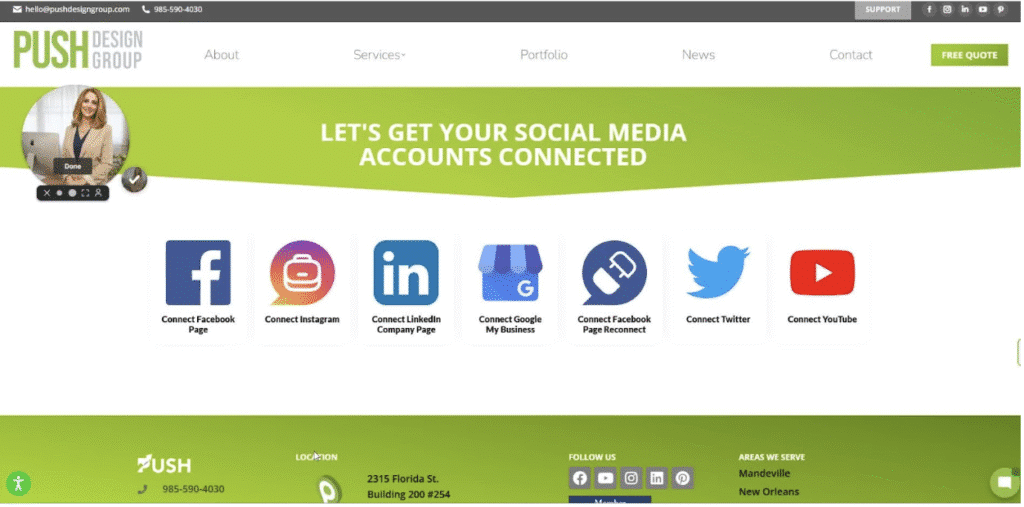
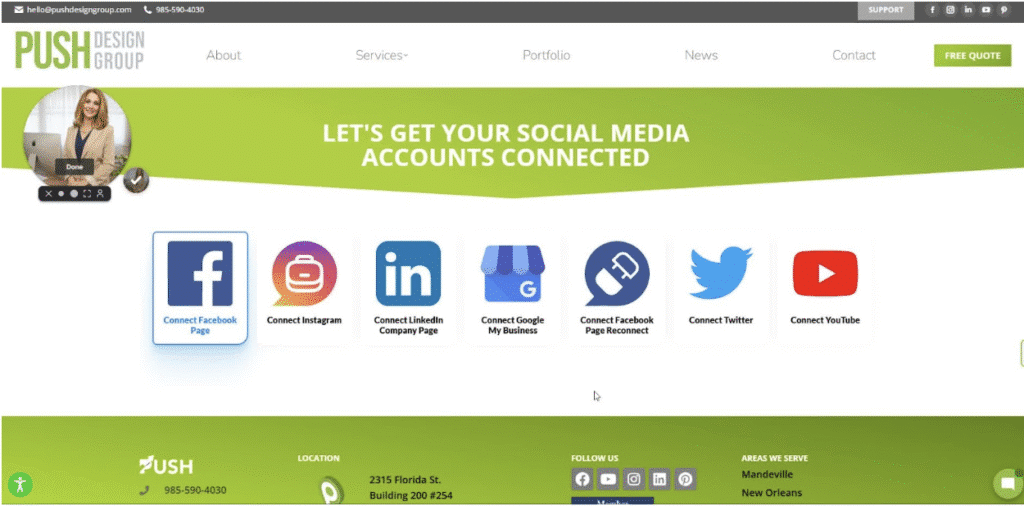
Step 1: Access the Social Media Connection Page
- Locate the link to the social media connection page that you received.
- Click on the link to open the page.
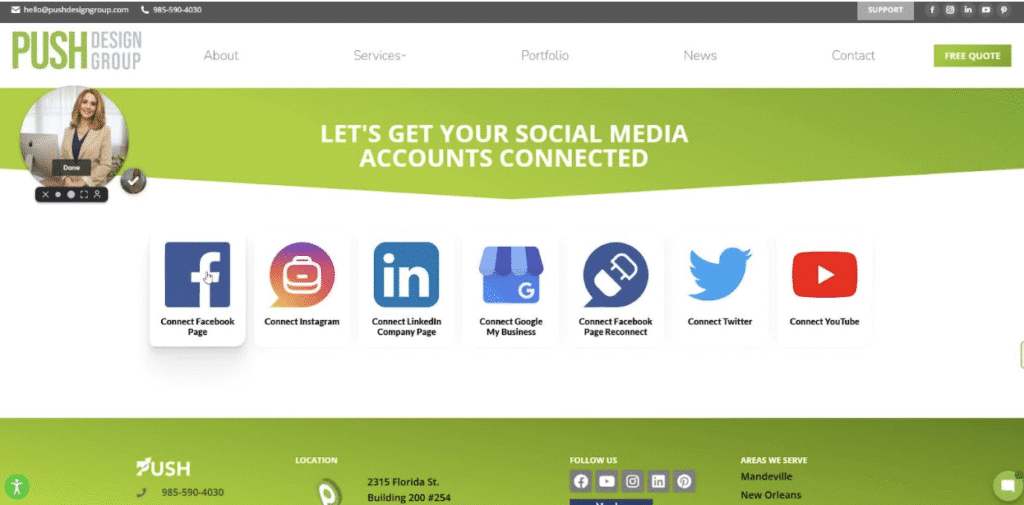
Step 2: Select Your Social Media Platform
- Choose the social media platform you wish to connect from the list provided.
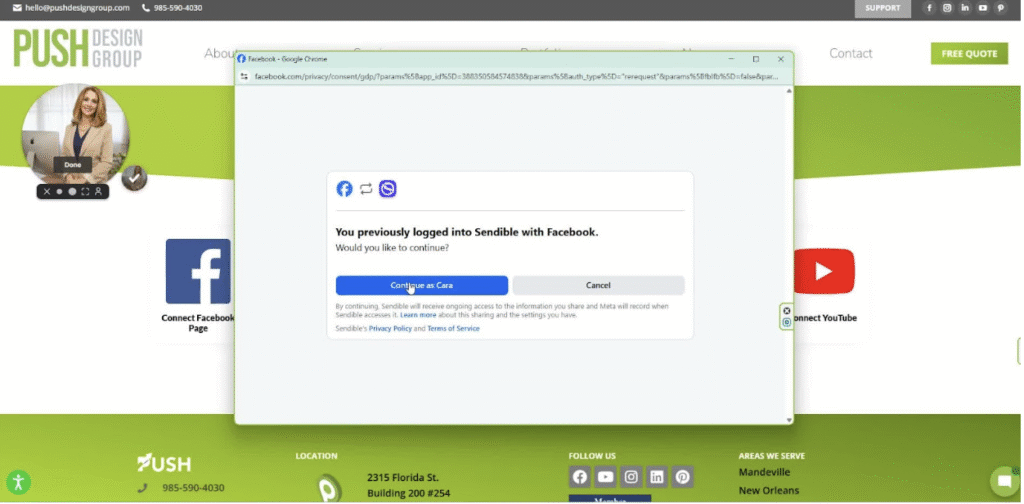
Step 3: Log Into Your Account
- Choose the social media platform you wish to connect from the list provided.
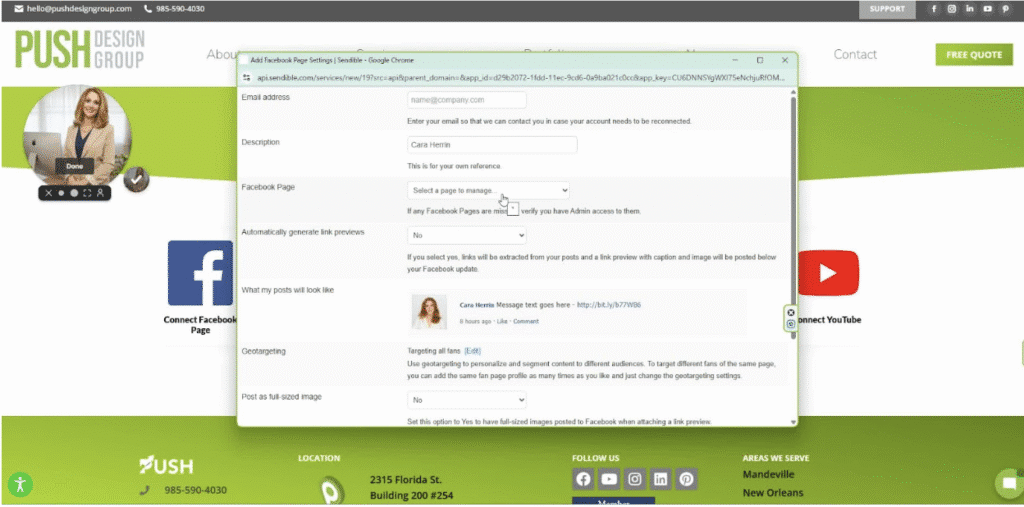
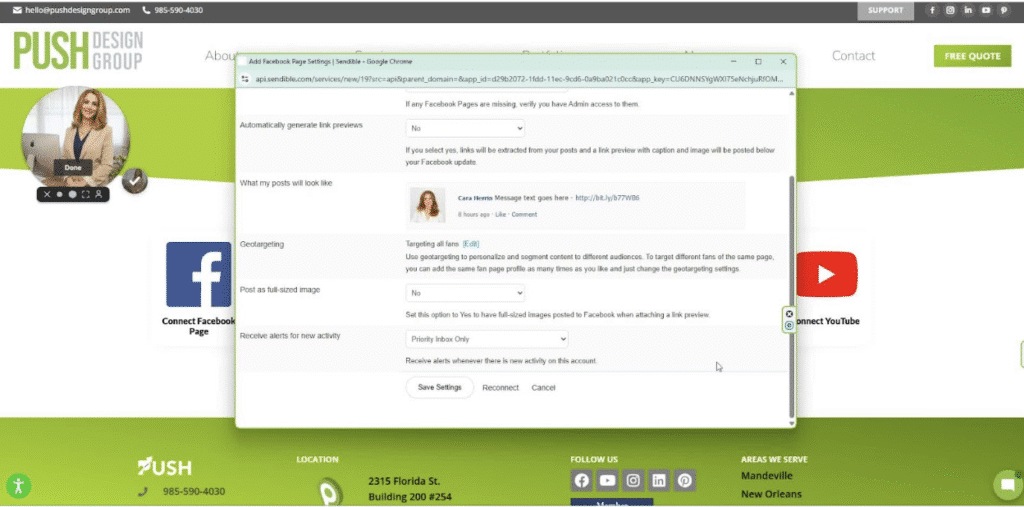
Step 4: Choose Your Business Page
- From the drop-down menu, select your business page (e.g., Push Design Group).
Step 5: Save Your Settings
- Scroll down and click on ‘Save Your Settings’.
- Ensure that you have access to your phone if two-factor authentication is enabled.
Step 6: Confirm Settings and Move On
- After saving, the window will close.
- You can now proceed to connect additional platforms.
Step 7: Connect Google My Business
- Make sure to connect your Google My Business page as it is also used for social media content.
Step 8: Seek Help if Needed
- If a platform is missing, reach out for assistance.
- Use the web chat feature or send an email for support.
Cautionary Notes
- Ensure you have access to your phone for two-factor authentication.
- Double-check that you are selecting the correct business page to avoid any errors.
Tips for Efficiency
- Prepare your login credentials for each social media platform in advance.
- Connect all relevant platforms in one session to save time.

